
How to Sign a PDF on a Mac

To sign a PDF on a Mac, open it in Preview, choose Tools > Annotate > Signature and create your signature with the trackpad, the camera or an iPhone. One click puts it on the page, for free, and the file never leaves your Mac. The guide also covers keeping the original, certificate-based signatures and Eyno Paper.

Updated October 30, 2026 · Verified on macOS 27 · 6 min read

Key takeaways

  • In Preview, Tools > Annotate > Signature lists your saved signatures. Click one and it appears on the page.
  • You create it once, on the trackpad, with a signed sheet held up to the camera, or on a nearby iPhone or iPad. Preview keeps it encrypted, with the key in the keychain.
  • Preview saves into the file you opened. File > Duplicate before signing keeps an unsigned copy.
  • Preview and Eyno Paper place an image of your handwritten signature. Neither signs with a digital certificate, which some contracts and official forms ask for.

How to sign a PDF on a Mac with Preview

Preview opens PDFs by default and has a signature tool. Here is how to sign a PDF in Preview the first time.

  1. Double-click the PDF to open it in Preview.
  2. Click the Show Markup Toolbar button, or go straight to Tools > Annotate > Signature.
  3. Click the signature button. The Signatures list opens, still empty, with the ways to create one.
  4. Create your signature with the Trackpad, the Camera, or an iPhone or iPad near the Mac.
  5. Click the new signature in the list. It lands on the page.

Next time, the saved signature is one click away.

Three ways to create your signature

  • Trackpad. Preview shows “Sign your name on the trackpad.” Write it with your finger, then “Press any key when finished.”
  • Camera. Sign a sheet of white paper and hold it up to the Mac's camera.
  • iPhone or iPad. Pick the device and it shows “Sign your name on your iPhone.” You sign on its screen.

An optional description, Full Name, Initials or Nickname, tells signatures apart. Handy if you keep your initials for the inner pages of a lease.

Where Preview stores signatures

Preview confirms that “This signature has been saved and encrypted for security.” The key is kept in your Mac's keychain. Markup shares the same signatures, and Remove Signature deletes one you no longer want.

Place the signature and save the signed PDF

Drag the signature onto the line, and drag a corner to make it larger or smaller. Repeat on every page that needs it.

Keep the unsigned original

File > Save writes the signature into the PDF you opened, with no unsigned version kept aside. Choose File > Duplicate before signing and work in the copy, or use File > Export as PDF… to get a separate file.

A scanned contract sometimes ends with an empty sheet. You can delete a blank page from the PDF before you sign it. A contract typed in a word processor has to become a PDF first. Eyno Write exports your document as a PDF with ⇧ ⌘ E, then you sign it like any other.

Handwritten signature or certificate-based electronic signature

What Preview adds to a PDF is an image of your handwritten signature, placed where you drop it. Plenty of documents are signed this way and sent back by email.

A certificate-based electronic signature works differently. It relies on a digital certificate tied to your identity, which software can check. Preview doesn't create that kind of signature, and Eyno Paper doesn't either.

When the other party needs a certified signature, they say so, and they usually tell you which service to use.

Sign a PDF for free without uploading it

Search for a free PDF signer and you mostly find websites. They work, and each one needs your file on its own server before you get the signed version back.

For a party invitation, that hardly matters. A lease or an employment contract carries your address and often your salary, and an ID copy speaks for itself. Preview signs the same file locally.

Eyno Paper · PDF reader and editor

Sign a PDF on Mac with Eyno Paper

Eyno Paper, the PDF reader and editor of the Eyno suite, has three modes in a pill bar at the top of each window, Read, Annotate and Pages. Signing happens in Annotate.

  1. Open AnnotateClick Annotate in the pill bar, then the Sign tool. Its hint reads “Pick a signature, then click (or drag) on the page to place it.”
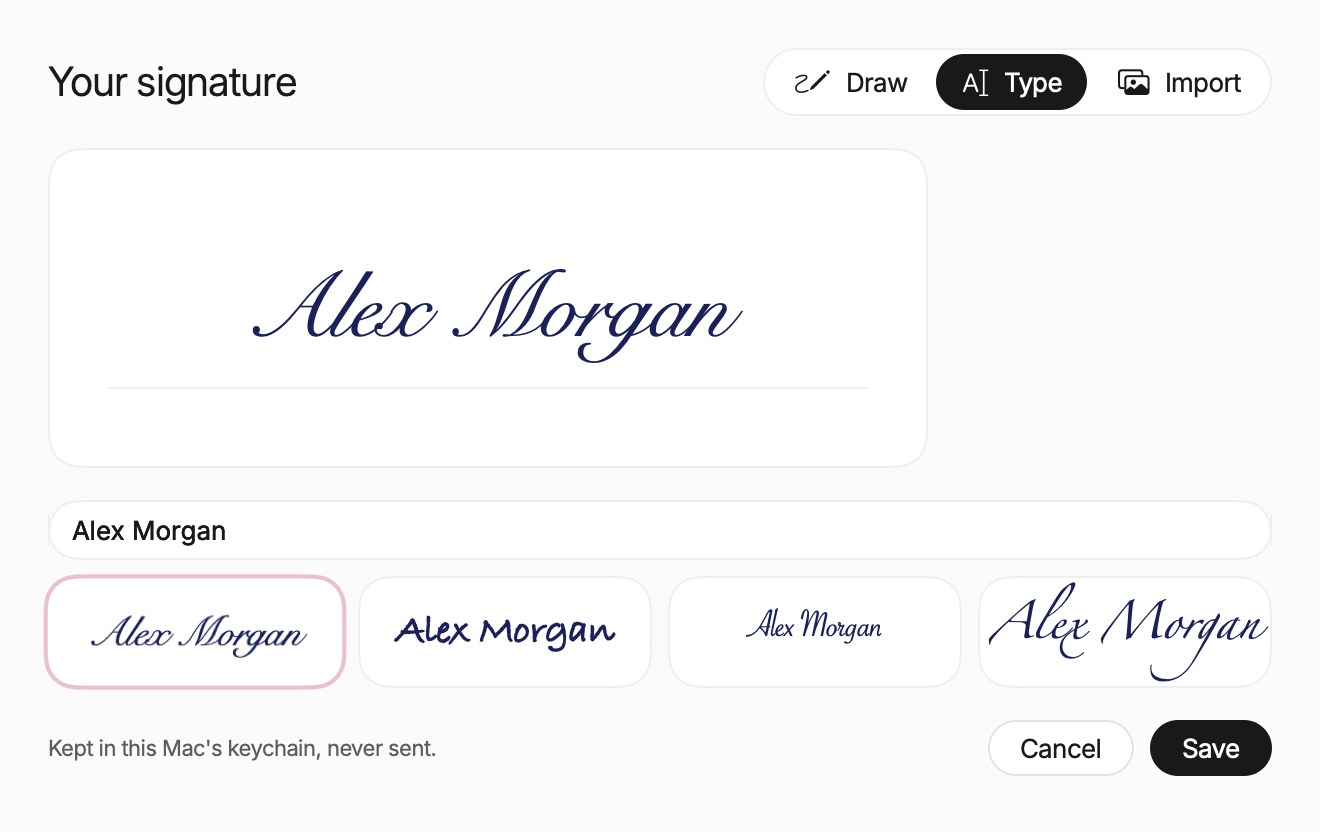
  2. Create your signatureChoose New signature…. The Your signature window opens with three tabs, Draw, Type and Import. Then click Save.
  3. Place itPick it under Your signatures and click on the page. A click sets it 160 points wide. Drag instead to draw it at the width you want.
The Your signature window of Eyno Paper with the Type tab selected. The fictitious name Alex Morgan appears in a handwriting font on the white signing area and in the text field below, above four handwriting styles, the first one outlined in pink. At the bottom, the line Kept in this Mac's keychain, never sent, next to the Cancel and Save buttons.
The Your signature window as Eyno Paper draws it, with a fictitious name. Type offers four handwriting styles, and Draw and Import sit next to it.

In Draw you sign inside the frame with the mouse or trackpad, and Clear starts over. Import takes a photo or scan of your signature on white paper and makes the background transparent, so no white box shows on the page.

The signature keeps its proportions when you move it or resize it from its corners. Once one is on the document, the sidebar header reads Signed. ⌘ Z undoes, and Paper saves in place like any Mac document.

Signatures stay in this Mac's keychain and are never sent. The trash button, Delete signature, removes one. The sidebar header also reads Everything stays on this Mac, and no document is uploaded. To send a form out for signing, the Form Field tool adds a signature field, the place where someone will sign. Paper runs on macOS 15 or later.

Questions

Signing PDFs on a Mac, the usual questions

How do I add a signature to a document on my Mac?

For a PDF, open it in Preview, choose Tools > Annotate > Signature and click a saved signature, or create one with the trackpad, the camera or an iPhone. A word processing document has to be exported as a PDF first.

Where does Preview store signatures?

Preview saves them encrypted, with the key kept in your Mac's keychain. They appear in the Signatures list under Tools > Annotate > Signature, and in Markup.

How to fill out PDF forms?

Eyno Paper fills PDF forms, and its Sign tool in Annotate mode puts your signature on the signature line. If you prepare the form yourself, the Form Field tool adds fields, a signature field included.

What is an electronic signature?

The phrase often covers any signature added on a computer, including the handwritten signature image Preview places on a PDF. A certificate-based electronic signature relies on a digital certificate tied to your identity, and Preview and Eyno Paper don't create those. When a document needs one, the sender says so and usually names the service.

Can I sign a PDF for free on a Mac?

Yes. Preview comes with every Mac, signs PDFs at no cost and keeps the file on your computer. Free websites do it too, after you upload the document to their server.

Preview or Eyno Paper

To sign a PDF on a Mac now and then, Preview is free and already installed. If you sign PDFs every week, Eyno Paper keeps your signatures one click away in Annotate. The trial lasts 7 days, needs no card and opens all eight Mac apps. After that, the Eyno subscription costs €5.99 a month or €59.90 a year for all eight. You can also try the apps in the demo Mac on the home page before installing anything.