
How to Convert HEIC to JPG on a Mac

To convert HEIC to JPG on a Mac, select your photos in the Finder, Control-click them and choose Quick Actions > Convert Image. The JPG copies land next to the originals. Below you'll also find Preview, Photos, the iPhone settings that avoid HEIC and a way to make a JPEG smaller.

Updated October 29, 2026 · Verified on macOS 27 · 8 min read

Key takeaways

  • HEIC is the iPhone's default photo format. A HEIC file is about half the size of a JPG of similar quality, but JPG is the one that opens everywhere.
  • On a Mac, the Finder converts without installing anything. Select the photos, Control-click, then Quick Actions > Convert Image and JPEG.
  • Preview and Photos also export to JPEG and let you set the quality, which is how you get a smaller file.
  • On the iPhone, Settings > Camera > Formats > Most Compatible makes new photos JPG from the start.

Why are my photos HEIC?

Because that's how the iPhone saves photos unless you tell it otherwise. Apple picked HEIC for one practical reason. A HEIC file is about half the size of a JPG of similar quality, so the same storage holds roughly twice as many pictures.

The trouble starts once a photo leaves your Apple devices. JPG opens everywhere, on a Windows PC, on an Android phone, on a website, in an online form. HEIC is less welcome, and some upload forms refuse it outright. That's usually the moment people look up how to turn HEIC to JPG, with a file to send and a form that won't take it.

HEIC or HEIF?

You'll run into both names. Your iPhone photos end in .heic, and the Mac's Convert Image menu lists the format as HEIF. For the purpose of this guide, they're the same thing.

Convert HEIC to JPG on Mac with the Finder

If you want to know how to convert HEIC to JPG without downloading anything, start here. The Finder has a built-in Quick Action that works on one photo or fifty.

  1. Select one or several HEIC files in a Finder window or on the desktop.
  2. Control-click the selection, or right-click with a mouse.
  3. Choose Quick Actions > Convert Image.
  4. Pick JPEG as the format, adjust the two options below if you need to, and confirm.

The JPG copies appear right next to the originals. Nothing is replaced, so you still have the HEIC files if you need them later.

Image Size
Smaller in the same step. Choose a smaller size when the photo is headed for an email or a web form.
Preserve Metadata
Keeps the photo's details. EXIF data and the GPS location stay in the JPG. Uncheck it to share a picture without revealing where it was taken.

Screenshots are a separate case, since the Mac saves them as PNG. Our guide on how to take a screenshot on Mac and save it as JPG covers the setting that changes it.

Change HEIC to JPG in Preview

Double-click a HEIC photo and it opens in Preview. Choose File > Export…, select JPEG in the Format menu and set the Quality slider. A lower quality means a lighter file. Preview saves the JPG wherever you tell it to and leaves the original alone.

A whole batch of photos

Select all the HEIC photos in the Finder and open them together. They show up as thumbnails in Preview's sidebar. Click one thumbnail, press ⌘ A to select them all, then choose File > Export Selected Images… and pick JPEG. Every photo gets its own JPG in the folder you choose.

Export HEIC photos as JPG from the Photos app

If your pictures live in the Photos library rather than in a folder, export them from there. Select the photos, choose File > Export > Export Photos…, set the type to JPEG and pick the JPEG Quality. Photos asks for a destination folder and writes the JPG files there. The library itself doesn't change.

This is the handiest route for an album you want to hand to someone on Windows, since you skip finding the files in the Finder first.

Stop your iPhone from saving photos as HEIC

If you'd rather never have to convert HEIC to JPG again, change it at the source. These two settings are on the iPhone, in iOS, not on the Mac.

  • Settings > Camera > Formats > Most Compatible. New photos are taken as JPG. They'll take about twice the space of the HEIC version, and photos you already have stay as they are.
  • Settings > Photos > Transfer to Mac or PC > Automatic. The iPhone keeps shooting HEIC but converts photos to JPG when you copy them to a computer with a cable.

The second option is a good middle ground. You keep the smaller files on the phone and still get JPG on the computer when you plug it in.

Free HEIC to JPG converters online

Search for a free HEIC to JPG converter and you'll get pages of websites that do it in the browser. They work. Every one of them, though, needs you to upload your photos to someone else's server before you get the JPG back.

For a picture of a sunset, that may not bother you. For a scan of an ID card or a photo of your children, it deserves a second thought. The Finder, Preview and Photos are just as free, and the conversion happens on your Mac without the photo going anywhere.

Make a JPEG smaller on Mac

Converting is often only half the job. A form caps the file size, or an email bounces. Three tools on the Mac can shrink a JPEG.

  • Convert Image in the Finder. The Image Size option reduces the dimensions while converting.
  • Preview. File > Export…, then drag the Quality slider toward the left until the file is small enough.
  • Photos. Export with a lower JPEG Quality.

Going down in quality first is usually enough for a phone photo. Reduce the size too when the photo only needs to look right on a screen.

Eyno Convert · file conversion

HEIC to JPG in one drag with Eyno Convert

The Finder method means a right-click, a submenu and a dialog every time. Eyno Convert lives in the menu bar and turns that into one gesture, wherever the file happens to be.

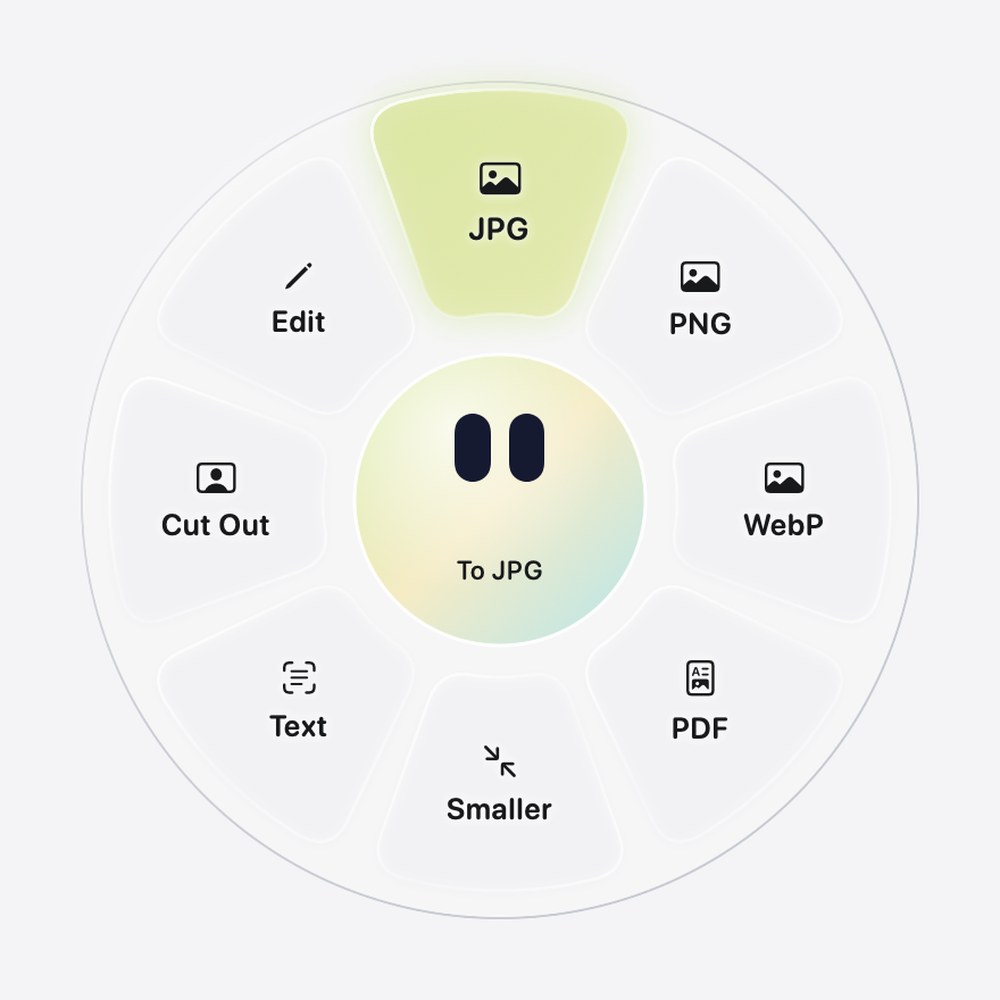
  1. Hold Shift and dragStart dragging the photo while holding Shift. A wheel opens under the pointer.
  2. Drop on JPGRelease the file on the JPG petal at the top of the wheel. The center reads To JPG while you hover over it.
  3. Find the copyThe JPG appears next to the original with the same name. The HEIC file is never modified, and if vacation.jpg already exists, the new one becomes vacation 2.jpg.
The Eyno Convert wheel open on a HEIC photo. Eight petals surround a round center showing the mascot's two eyes, the JPG petal at the top is highlighted in green, and the center reads To JPG.
The wheel as Eyno Convert draws it for a HEIC photo. Clockwise from the top, the petals read JPG, PNG, WebP, PDF, Smaller, Text, Cut Out and Edit.

The other petals cover what usually comes next. PNG, WebP and PDF are other formats. Smaller limits the photo to 1920 pixels on its long side, ready to send. Text reads the words in the image and saves them as a .txt file. Cut Out removes the background and gives you a PNG. Edit lets you crop, annotate, hide personal information and adjust the light.

Drop several files at once and each one is converted. Several images can also become a single PDF. An image with a transparent background sent to JPG is placed on white.

One difference from the Finder is worth knowing. The converted file doesn't carry over the EXIF data or the GPS location, so a photo you share doesn't say where it was taken. When you want to keep that information, use the Quick Action with Preserve Metadata checked.

Convert also handles videos and sounds. It turns a video into MP4, makes it lighter and can cut it, which helps with the .mov file you get from a screen recording on Mac.

Questions

HEIC and JPG, the usual questions

Why are my photos HEIC?

HEIC is the iPhone's default photo format, because it keeps files about half the size of a JPG of similar quality. To shoot in JPG instead, go to Settings > Camera > Formats on the iPhone and choose Most Compatible. Photos you've already taken stay in HEIC.

How can I convert an HEIC image to JPG?

On a Mac, select the file in the Finder, Control-click it and choose Quick Actions > Convert Image, then JPEG. A JPG copy appears next to the original. Preview does the same with File > Export…

What is the best HEIC to JPG converter?

For a few photos, the tools already on your Mac do the job. The Finder, Preview and Photos all export JPG for free, and your photos never leave the computer. If you convert files often, Eyno Convert does it in one drag and also handles PNG, WebP, PDF, videos and sounds.

How can I make a JPEG smaller on Mac?

Open it in Preview, choose File > Export… and move the Quality slider down. The Convert Image Quick Action in the Finder also has an Image Size option. In Eyno Convert, the Smaller petal limits the photo to 1920 pixels on its long side, which is plenty for sending it.

Can I convert HEIC to JPG for free?

Yes. The Finder, Preview and Photos come with every Mac and cost nothing. Free online converters exist too, but they ask you to upload your photos to someone else's server.

Next steps

For a handful of iPhone photos, the Finder Quick Action is all you need to convert HEIC to JPG. If files keep landing on your desk in the wrong format, whether HEIC, PNG or MOV, Eyno Convert turns them into JPG or MP4 in one drag. The 7-day trial needs no card and opens the seven other Mac apps too. After that, the Eyno subscription costs €5.99 a month or €59.90 a year for all eight. You can also try the apps in the demo Mac on the home page before installing anything.