
How to Delete a Page from a PDF on a Mac

To delete a page from a PDF on a Mac, open the file in Preview, choose View > Thumbnails, click the page in the sidebar and press Delete. Preview writes the change into the same file, so make a copy first if you need the original. The guide also covers several pages at once, scans, page order and the Pages grid of Eyno Paper.

Updated October 29, 2026 · Verified on macOS 27 · 6 min read

Key takeaways

  • In Preview, choose View > Thumbnails, click the page you don't want and press the Delete key. Edit > Delete does the same.
  • ⌘-click selects several pages in the sidebar and Shift-click selects a whole range, so ten pages go as fast as one.
  • Preview saves the change into the file you opened. Choose File > Duplicate first to keep the full version, and use ⌘Z to undo before closing.
  • Online tools are free too, but they upload your PDF to someone else's server. Preview keeps the file on your Mac.

Delete a page from a PDF in Preview

Preview comes with every Mac and opens PDFs by default, which makes it the quickest answer to how to delete a page from a PDF.

  1. Double-click the PDF. Unless you've chosen another default app, it opens in Preview.
  2. Choose View > Thumbnails. A column of small pages appears on the left.
  3. Click the thumbnail of the page you want to remove.
  4. Choose Edit > Delete, or press the Delete key.

The pages after it move up. If you removed the wrong one, Edit > Undo or ⌘ Z brings it back while the window is still open.

Delete several pages at once

In the sidebar, ⌘-click each page you want gone. For pages that follow each other, click the first one and Shift-click the last. In a 40-page scan, that's two clicks to select pages 12 to 20, then a single press of Delete removes all nine.

For a long document, View > Contact Sheet fills the window with the pages, which makes the unwanted ones easier to spot.

Keep a copy of the original

Preview writes your edits into the file you opened, so once you close it the page is gone for good. To keep the full version, say a signed contract you're only sending part of, choose File > Duplicate before deleting anything and work in the copy.

Remove pages from a scanned PDF

A scanned document is a PDF like any other, so the thumbnail method works the same way. Scans tend to collect blank pages, often the back of a sheet printed on one side. ⌘-click every blank thumbnail and delete them together.

Fix a page instead of deleting it

Sometimes the page only needs a fix.

  • Tools > Rotate Left or Rotate Right for a page that came out sideways.
  • Edit > Insert > Page from Scanner… to scan a blurry page again, then delete the bad one.
  • Edit > Insert > Page from File… to add pages from another document, or Blank Page when you need a separator.

Rearrange pages in a PDF and extract one

The thumbnail sidebar also handles page order. Drag a thumbnail to where the page belongs.

To pull a single page out as its own file, drag its thumbnail to the desktop. To move pages into another PDF, open both documents and drag thumbnails from one sidebar to the other.

Once the pages are right, a contract usually needs a signature. Preview keeps that under Tools > Annotate > Signature.

Free online tools to delete PDF pages

Search for “delete page from PDF free” and you'll find plenty of websites that do it in the browser. They work. Each one, though, needs your PDF on its own server before you get the shorter version back.

For a restaurant menu, that hardly matters. For a contract, a pay stub or a scanned ID, it deserves a second thought. Preview is free too, and the file never leaves your Mac.

Eyno Paper · PDF reader and editor

Delete pages from a PDF on Mac with Eyno Paper

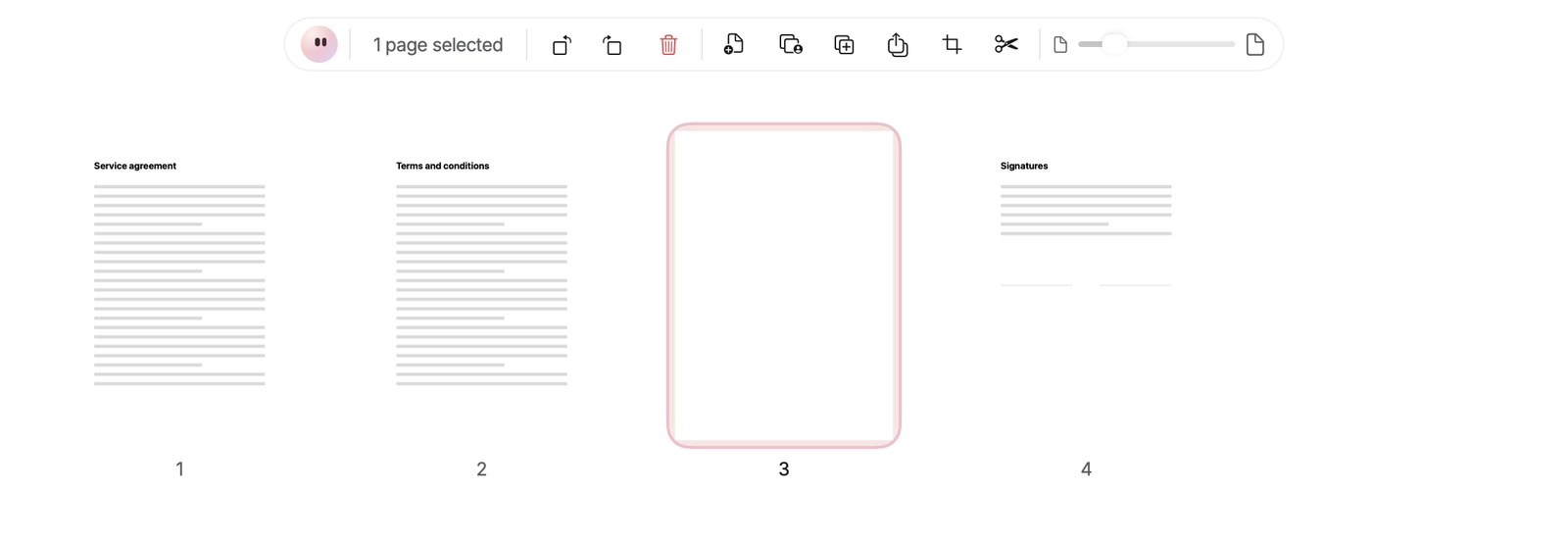
Eyno Paper gives pages their own view. Each window has three modes in a pill bar at the top, Read, Annotate and Pages. Pages lays out the whole document as a grid under a floating bar.

  1. Switch to PagesClick Pages in the pill bar at the top of the window. Every page of the document appears in the grid.
  2. Select the pagesClick a page. ⌘-click adds or removes another one, ⇧-click selects a range. The bar keeps count, for example 3 pages selected.
  3. Delete themClick the red trash button in the bar, choose Delete from the right-click menu, or press ⌫. ⌘ Z brings the pages back.
The Pages grid of Eyno Paper on a fictitious four-page contract. Page 3 is blank and outlined in pink, and the floating bar above reads 1 page selected next to the rotate buttons, a red trash button, the page tools and a thumbnail size slider.
The Pages grid as Eyno Paper draws it, on a fictitious contract. Service agreement, Terms and conditions, a blank page selected for deletion, then Signatures.

Paper won't take out the last page. If you try, it reminds you that a PDF keeps at least one page.

The same bar and the right-click menu cover the rest. Drag thumbnails to reorder them, several at a time if you like. Rotate left or right, Duplicate, or Extract the selected pages as a new PDF. Add a Blank page, Insert a PDF, or drop PDFs and images onto the grid, where each image becomes a page. That's a quick way to add a screenshot taken on your Mac to a report. Crop trims the pages, Split needs at least 2 pages, and the slider or a pinch on the trackpad changes the thumbnail size.

To join files, File > Merge PDFs… or ⌥ ⌘ M takes at least two PDFs and puts them together in file-name order. If you're starting from iPhone photos, Eyno Convert can turn several photos into a single PDF.

The Thumbnails column on the left, ⌥ ⌘ S, is only for navigating. Paper saves in place like any Mac document.

For the contract itself, the Sign tool in Annotate mode lets you draw your signature, type it in a handwriting font or import an image. It stays in this Mac's keychain. As the sidebar header puts it, Everything stays on this Mac, and no document is uploaded.

Questions

Deleting PDF pages, the usual questions

How do I delete scanned documents in Preview?

Open the scan in Preview and choose View > Thumbnails. Click the page you want to remove, or ⌘-click several, then press Delete or choose Edit > Delete. Preview saves the change into the same file, so use File > Duplicate first if you want to keep the full scan.

How to rearrange pages in PDF?

In Preview, show the sidebar with View > Thumbnails and drag a thumbnail to its new position. In Eyno Paper, switch to Pages mode and drag the pages in the grid. Several selected pages move together.

Can I remove pages from a scanned PDF?

Yes. A scan is a PDF made of pages like any other, so you delete them the same way, from Preview's thumbnails or from the Pages grid in Eyno Paper. That's also how you clear out blank pages left by a scanner.

How to erase in Preview on Mac?

To erase a whole page, select its thumbnail in View > Thumbnails and press Delete. Edit > Undo or ⌘Z cancels the last change while the document is open. To hide details on a page, such as an email address or a phone number, the Redact tool in Eyno Paper finds them and creates a redacted copy.

Can I delete a page from a PDF for free?

Yes. Preview comes with every Mac and removes PDF pages at no cost, without sending the file anywhere. Free websites do it too, but they ask you to upload the document to their server first.

Which one to use

To delete a page from a PDF now and then, Preview does the job and is already on your Mac. If you sort, sign and trim PDFs every week, Eyno Paper puts every page of the document in one grid with the tools above it. The 7-day trial needs no card and opens all eight Mac apps. After that, the Eyno subscription costs €5.99 a month or €59.90 a year for all eight. You can also try the apps in the demo Mac on the home page before installing anything.