How to Compress an Image on a Mac

To compress an image on a Mac, open it in Preview, choose File > Export…, pick JPEG and drag the Quality slider to the left. Shrink an oversized photo first with Tools > Adjust Size… in the same app. Every method here is free and built into macOS.

Updated November 1, 2026 · Verified on macOS 27 · 4 min read

Key takeaways

  • Two things make an image heavy, its pixel count and its compression. Resizing cuts the first, a lower JPEG quality the second.
  • A 12-megapixel photo resized to 1,920 pixels has about 4 times fewer pixels, plenty for email or the web.
  • Preview, the Finder, Photos and Mail compress images for free, without uploading anything.

What makes an image file heavy

A photo's weight depends on its pixel count and on how hard those pixels are compressed, which for a JPEG is the quality setting. Lowering the first is resizing, lowering the second is compressing. You usually want both.

An example, in plain arithmetic. A 12-megapixel photo is 4,032 × 3,024 pixels. Brought to 1,920 pixels on its long side, it becomes 1,920 × 1,440, about 2.8 megapixels, roughly 4 times fewer pixels.

Lossy or lossless

JPEG, HEIC and WebP are lossy and drop detail you rarely notice. PNG is lossless, right for screenshots, logos and transparency but heavy for photos, which is why screenshots on a Mac, saved as PNG by default, often weigh so much. Each new save of a JPEG costs a little quality, so always export from the original, even if it takes 3 times.

Which size for which use

  • Email. Mail's own sizes are 320 × 240 pixels for Small, 640 × 480 for Medium and 1,280 × 960 for Large.
  • A website or an online form. Rarely more than 1,920 pixels wide.
  • A stated limit, say 2 MB. Lower the dimensions first, then the quality.

Compress an image on a Mac without installing anything

Four built-in apps reduce image size on a Mac.

Preview

  1. Tools > Adjust Size…Set Fit into, or a Width with Scale proportionally and Resample image checked. Resulting Size shows the new size before you click OK.
  2. File > Export…Choose JPEG as the format.
  3. Lower the QualityDrag the slider left for a lighter file, then save.

To resize an image on a Mac in bulk, open the photos together in Preview, select every thumbnail in the sidebar and choose File > Export Selected Images…

The Finder's Quick Action

Select the images, Control-click and choose Quick Actions > Convert Image. Pick JPEG and a smaller Image Size. Preserve Metadata decides whether details such as the location follow the copy, created next to the original.

Photos

Choose File > Export > Export Photos…, set Photo Kind to JPEG and lower the JPEG Quality or the Size. Untick Location Information under Include to keep the place private.

Mail

In a new message, the Image Size menu offers Small, Medium, Large or Actual Size, and Message Size shows the result.

Online image compressors and your privacy

Search for an image compressor and most results are websites. They work, but each needs your photo on its server first. For a landscape, fine. A scanned passport is another matter. On a Mac you can compress a photo locally with the tools above.

WebP to JPG on a Mac

WebP is a web format, often what a browser saves, and your Mac opens it. For a JPG, open it in Preview and export it as JPEG through File > Export…, or drop it on Eyno Convert's JPG petal.

Eyno Convert · file conversion

Make an image smaller in one drag with Eyno Convert

Eyno Convert sits in the menu bar and replaces those menus with one drag.

  1. Hold Shift and dragDrag the file while holding Shift. A wheel opens under the pointer.
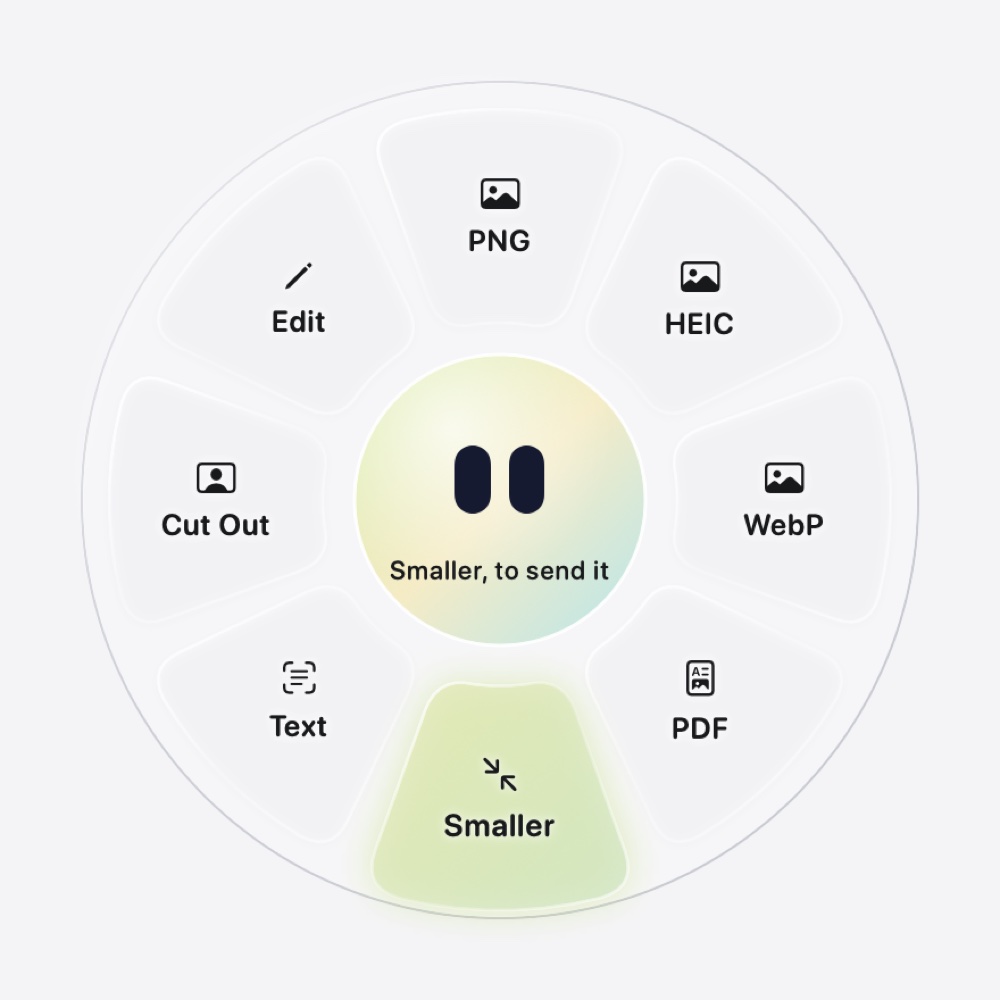
  2. Drop on SmallerThe center reads Smaller, to send it.
  3. Find the copyvacation (smaller).jpg appears next to the original, which is never modified.
The Eyno Convert wheel open on a JPG photo. Eight petals surround a round center showing the mascot's two eyes, the Smaller petal at the bottom is highlighted in green, and the center reads Smaller, to send it.
Clockwise from the top, PNG, HEIC, WebP, PDF, Smaller, Text, Cut Out and Edit. No JPG petal, since the photo already is one.

Smaller caps the image at 1,920 pixels on its long side and saves a JPG at 75% quality. A smaller picture keeps its size and is only recompressed, and a transparent one stays PNG. Drop several images and each gets its own copy.

The copy drops EXIF data and the GPS location, which the Finder's Quick Action can keep. Nothing is uploaded. The Eyno Convert page lists every format it handles, and converting iPhone HEIC photos to JPG has its own guide.

Compress video on a Mac

A MOV from an iPhone or a screen recording is far heavier than a photo. On Convert's Smaller petal it becomes an MP4 of at most 1280 × 720 pixels, ready to send and named "clip (smaller).mp4". The MP4 petal converts a MOV without shrinking it.

Questions

Making images smaller, the usual questions

What size should a photo be for email?

Medium, 640 × 480 pixels, or Large, 1,280 × 960, in the Image Size menu of Mail.

Does compressing an image lose quality?

A little with JPEG, HEIC and WebP, rarely visible at a medium setting. Repeated saves of one JPEG do show, so export from the original.

How do I compress several photos at once on a Mac?

Select them in the Finder, Control-click and choose Quick Actions > Convert Image with a smaller Image Size.

How do I convert WebP to JPG on a Mac?

Open it in Preview, choose File > Export… and pick JPEG.

Is there a free image compressor for Mac?

Yes. Preview, the Finder, Photos and Mail are already installed, and the photo never leaves your computer.

Next steps

For one photo, Preview is all you need to compress an image. If you shrink files every week, download Eyno Convert and try it for 7 days without a card. One Eyno subscription covers all eight Mac apps for €5.99 a month or €59.90 a year, and you can try the apps in the demo Mac on the home page first.