 Eyno
Download

Eyno Draw · screenshots and drawing
A screenshot app for Mac that marks up and blurs
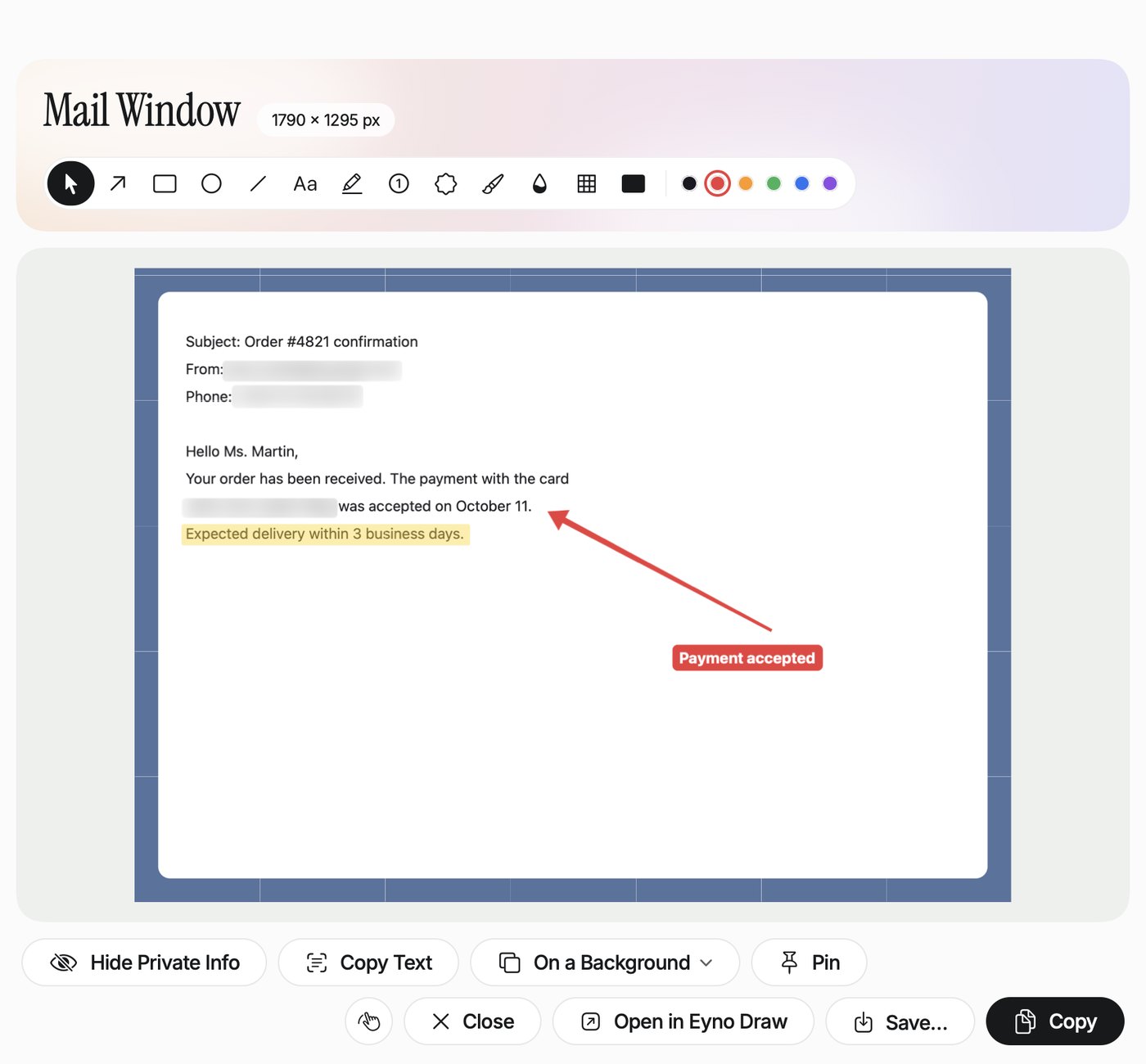
Eyno Draw is a screenshot app for Mac. Press ⌘ Shift 2, pick an area or a window, and the capture opens in a window with arrows, text, blur and a button that hides personal details. You copy the result into your message and move on. The Mac's own shortcuts keep working as before.
What Eyno Draw does
Draw adds its own shortcut, ⌘ Shift 2, which works even when the app is closed. The screen freezes, so an open menu stays put while you frame it. Drag an area, press Space to take the window under the pointer, which lights up with its name, or click once for the whole screen. The capture then opens in a window built for the next step.
Mark up
Arrow, box, ellipse, line, text, highlighter and numbered steps to walk someone through a screen. A stamp and a brush cover the rest.
Blur a screenshot
Blur an area, pixelate it or cover it with a dark block. Whatever you blurred stays blurred in the copied image, so the original details don't travel with it.
Hide Private Info
One button finds the email addresses, phone numbers and card numbers in the capture and hides them all at once.
Copy Text
Reads the text in the image. Handy when an error message is stuck in a dialog and you want to paste it into a search or a support ticket.
Pin
Keeps the screenshot above your other windows while you copy a reference number or a setting from it into another app.
Copy, save, keep drawing
Copy sends the image to the clipboard, Save… writes a file, On a Background sets it on a backdrop. Open in Eyno Draw takes it into the drawing side of the app.
Do you need a screenshot app for Mac at all?
Not always. ⌘ Shift 3, ⌘ Shift 4 and ⌘ Shift 5 capture the screen, an area or a window, and clicking the floating thumbnail opens the Mac's own markup tools, with shapes, text, a signature and cropping. For one arrow on an image, that's enough.
The built-in screenshot tool on Mac falls short when something has to disappear. It has no blur, nothing that finds an email address or a card number for you, no way to read the text in the image and no way to pin a capture above your windows. So you open the image in another app, save it, find it again and attach it. For a screenshot you send ten times a day to support or a coworker, those detours add up, and Draw removes them.
Annotate screenshots on Mac without switching apps
Everything happens in the window that opens after the capture. Number the steps of a how-to, circle the button that matters, hide a customer's phone number, then press Copy and paste into Mail, Slack or a ticket. That short loop is the whole point of a screenshot app for Mac, compared with saving a file and hunting for it in the Finder.
From the menu bar
The menu bar icon offers Capture in 3 Seconds and Capture in 5 Seconds, for menus and tooltips that only show while your hands are on the mouse. Capture Last Area Again repeats the same frame, and Recent Screenshots brings back what you took earlier. Draw doesn't take scrolling screenshots, and neither does the Mac.
From capture to message in three steps
- ⌘ Shift 2The screen freezes. Drag an area, press Space for a window, or click once for the whole screen.
- Mark upAdd an arrow, a box or a step number, then blur what shouldn't be seen or click Hide Private Info.
- CopyPaste the screenshot into your message. Anything you blurred stays blurred in the copied image.
Every Mac shortcut, where screenshots are saved and how to capture a full web page are covered in our guide on how to take a screenshot on a Mac. To turn a PNG screenshot into a JPG, Eyno Convert changes the format in one drag. When a still image isn't enough, Eyno Show records the screen as a polished demo video, and a capture you want to file with a report can go straight into a PDF with Eyno Paper, the PDF editor of the suite.
Included in the Eyno subscription
One subscription for every app in the suite
Eyno Draw is part of Eyno. You pay €5.99 a month or €59.90 a year, VAT included, for Draw and the seven other Mac apps. The trial lasts 7 days, needs no credit card and opens all eight apps. Draw is an 8 MB download and needs macOS 15 or later, and you can try this screenshot tool for Mac in the demo Mac on the home page before installing it.
Questions
Before you install it
Does Eyno Draw replace the Mac's screenshot shortcuts?
No. ⌘ Shift 3, ⌘ Shift 4 and ⌘ Shift 5 keep working as before. Eyno Draw adds its own shortcut, ⌘ Shift 2, which works even when the app is closed.
How do I blur part of a screenshot on a Mac?
Take the capture with ⌘ Shift 2, pick the blur or pixelate tool and drag over the area. Hide Private Info finds email addresses, phone numbers and card numbers and hides them in one click. The blur stays in the copied image.
Can Eyno Draw copy the text in a screenshot?
Yes. Copy Text reads the text in the image, so you can paste an error message into a search or a reply instead of retyping it.
Can it capture a whole web page that scrolls?
No. Eyno Draw doesn't take scrolling screenshots, and neither does the Mac. In Safari, File > Export as PDF… saves the whole page in one file.
How much does Eyno Draw cost?
Eyno Draw is part of the Eyno subscription, €5.99 a month or €59.90 a year for all eight apps. The trial lasts 7 days and needs no credit card.